What is Account Management?
The Account Management module allows you to create and maintain multiple financial accounts such as cash, savings, bank accounts, debit cards, credit cards, and loans. Each account tracks its own real-time balance based on the transactions you record. You can view a complete summary of your total assets and liabilities, group accounts by type, and control which ones appear in your transaction views.
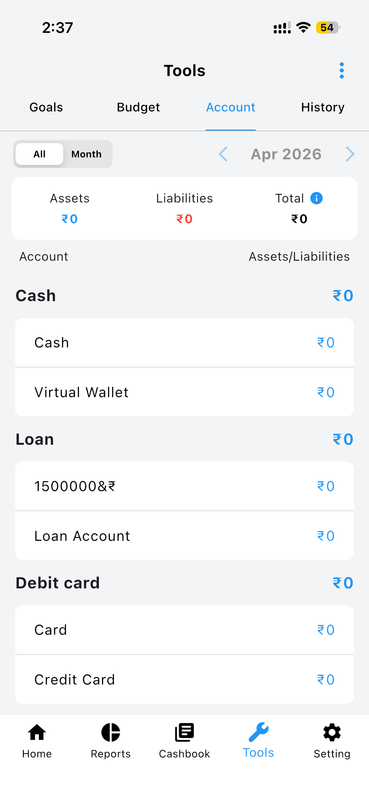
All Accounts, One Screen. The Account tab in the Tools section shows your total assets, liabilities, and net worth at a glance — organized by account group for easy reading.
Feature Highlights
Discover how Account Management helps you stay on top of your finances:
Create an Account with Opening Balance
Creating a new account is simple. Enter the account name, select its group (such as Cash, Savings, or Debit Card), and set an opening balance. You can add a description for your own reference. Once saved, the account is immediately available for recording transactions and tracking your real-time balance.
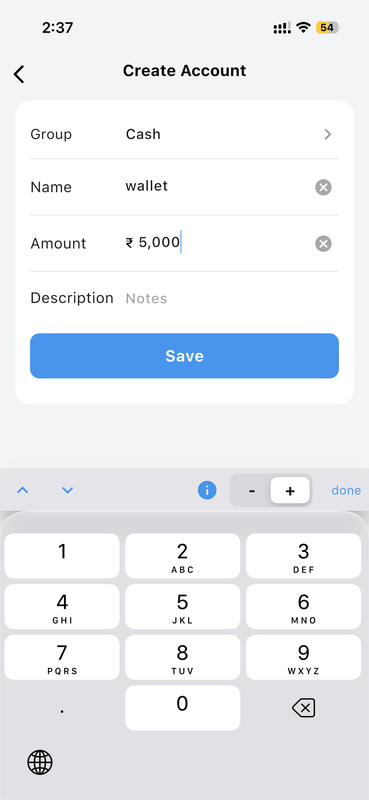
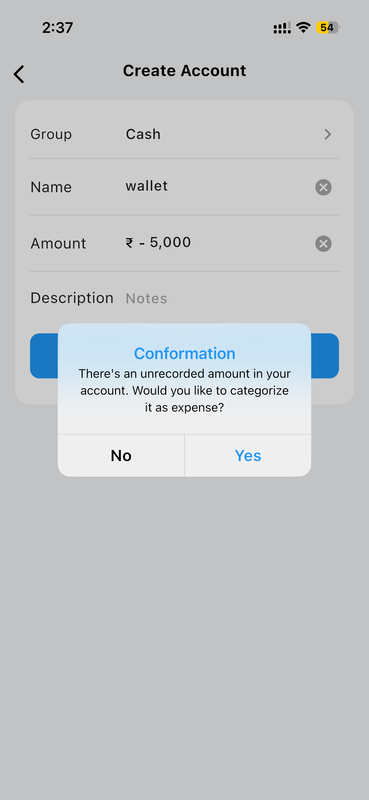
Confirm Before Saving
Before finalizing a new account, a confirmation popup summarizes the details you have entered. This step ensures accuracy and prevents mistakes. You can review the account name, group, and opening balance one last time before tapping to confirm and add the account to your financial records.
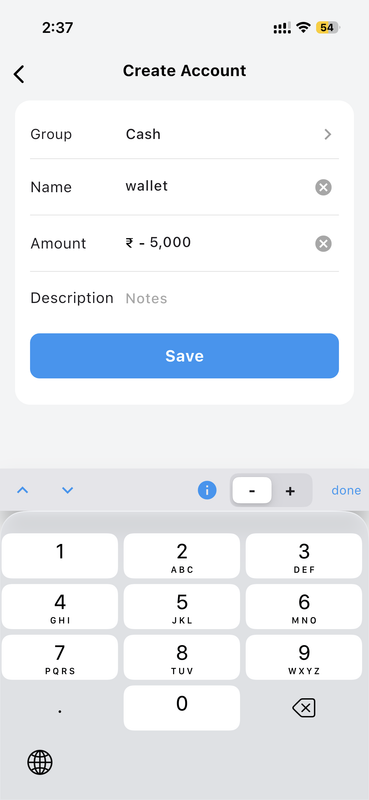
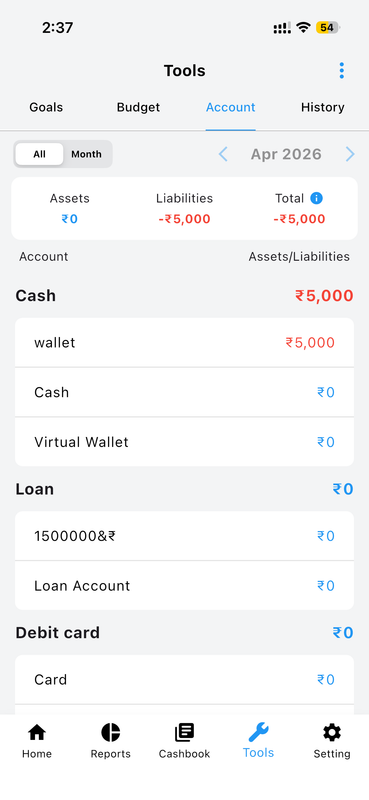
Support for Negative Balances
Money Manager supports accounts with negative opening balances, which is ideal for tracking loans, overdrafts, or credit card balances. Simply enter a negative amount when creating the account. The app clearly displays these as liabilities, giving you an accurate view of your overall financial position including all debts.
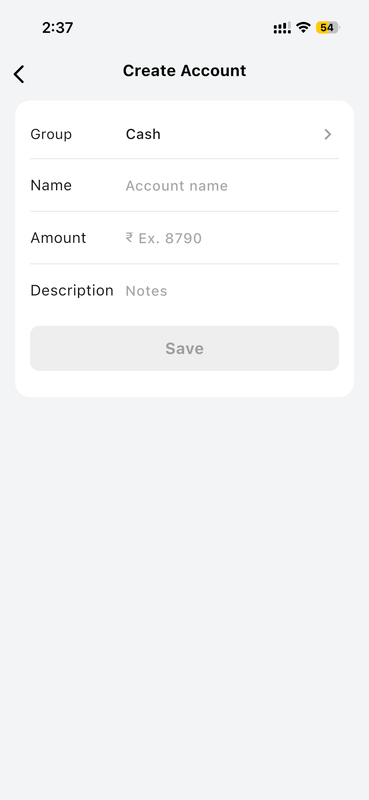
Simple Account Creation Form
The account creation form is clean and intuitive. You can choose the account group, give the account a unique name, set its starting balance, and optionally write a description. This straightforward setup ensures you can add new accounts in seconds, keeping your financial records complete and up to date at all times.
Account Dashboard Overview
The Account tab in Tools displays a complete summary of all your accounts, grouped by type such as Cash, Savings, Loan, and Debit Card. At the top, you can see your total assets, total liabilities, and overall net balance for the selected time period. This high-level view makes it easy to understand your complete financial picture instantly.
Quickly Update Account Values
You can directly enter or adjust values for any account straight from the dashboard view. This makes it convenient to make quick corrections or manual adjustments to account balances without navigating through multiple screens. The changes are reflected immediately across all reports and summaries in the app.
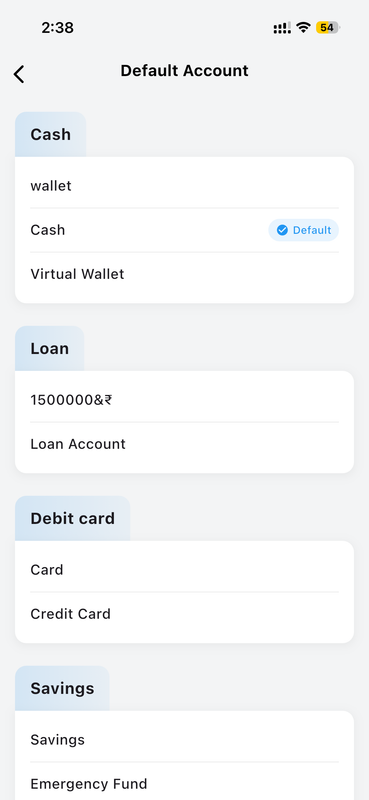
Preloaded Default Accounts
To help you get started quickly, Money Manager comes with a set of default accounts covering common categories such as Cash, Savings, and more. You can use these as a starting point and customize them to match your real financial accounts, or simply delete the ones you do not need and add your own from scratch.
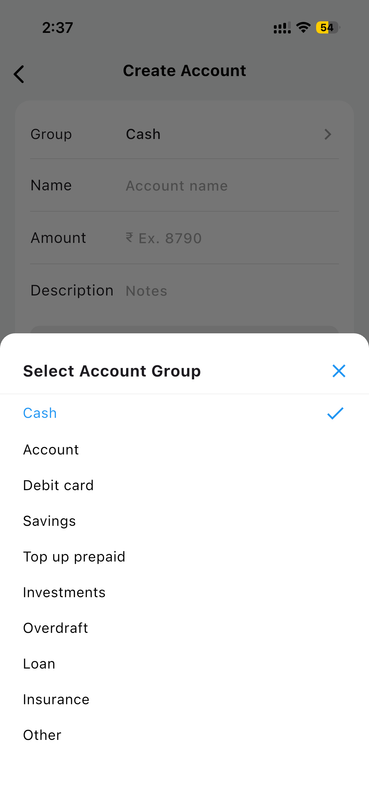
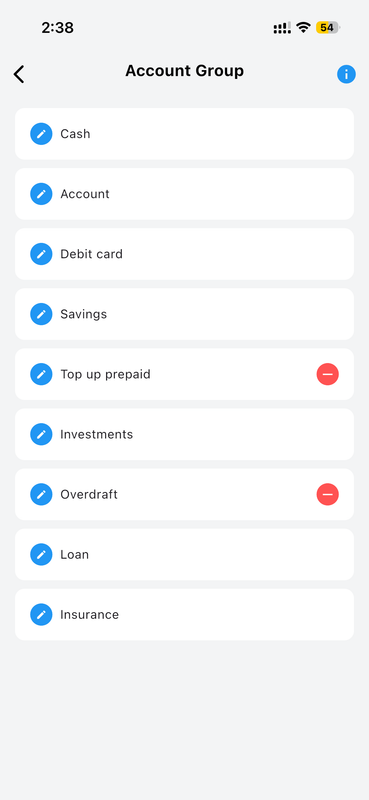
Choose Your Account Group
When creating an account, you can assign it to a specific group such as Cash, Bank, Savings, Debit Card, Credit Card, or Loan. Grouping accounts helps organize your financial data clearly and allows the app to correctly categorize accounts as assets or liabilities when calculating your net worth.
Organized Account Groups
Accounts are displayed in the dashboard grouped by their category. This hierarchical view makes it easy to compare balances across different account types and understand which groups contribute to your assets and which represent liabilities. Expanding or collapsing groups allows you to focus on the information that matters most.
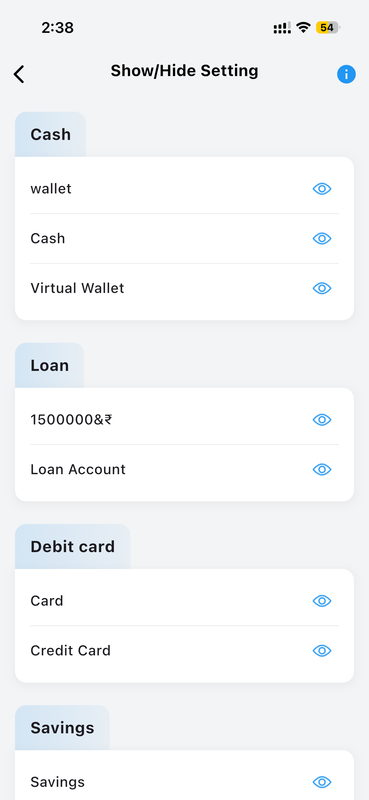
Show or Hide Accounts
The Show/Hide setting gives you control over which accounts appear throughout the app. You can toggle any account's visibility on or off without deleting it. Hidden accounts are excluded from transaction dropdowns and reports, making it easier to focus on the accounts you actively use while keeping archived ones safely stored.
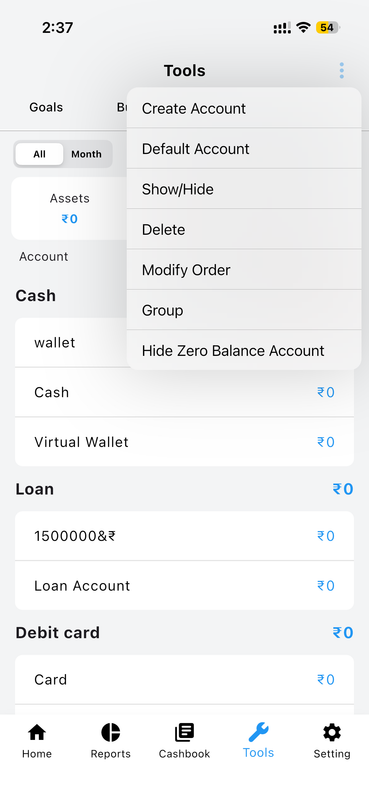
Account Options Menu
Each account comes with a set of management options accessible from a contextual menu. You can edit account details, adjust the opening balance, view the transaction history for a specific account, hide it, or delete it entirely. These options give you complete flexibility to keep your account list clean and accurate.
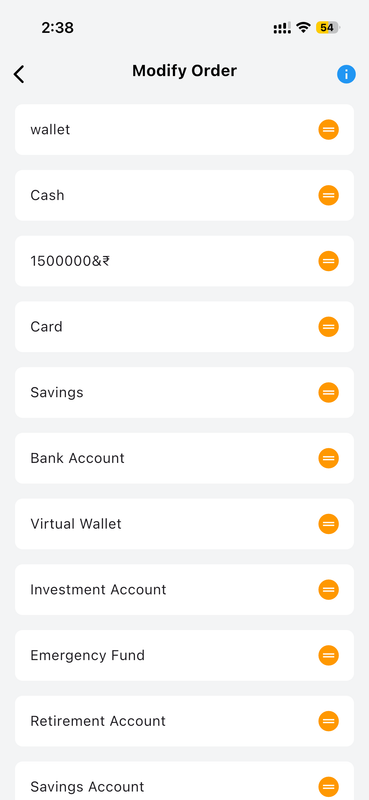
Reorder Accounts Your Way
You can rearrange the display order of your accounts to match your preferences. Drag and drop accounts into the sequence that feels most natural to you, whether that is by frequency of use, balance size, or simple alphabetical order. Your chosen order is saved and applied consistently across the app.
How to Manage Your Accounts
-
Go to Tools > Account Navigate to the Tools section and tap the Account tab to view your complete account list and financial summary.
-
Tap "+" to Create a New Account Fill in the account name, group, opening balance, and an optional description, then confirm to add it instantly.
-
Assign Transactions to Accounts When adding income or expense entries in the Cashbook, select the appropriate account so every transaction is linked correctly.
-
Show or Hide Accounts as Needed Use the Show/Hide Settings to toggle account visibility without deleting them. Hidden accounts remain in your records but are excluded from active views.
-
Reorder and Organize Drag and drop your accounts into your preferred order so the most important ones always appear at the top of the list.
Why You'll Love Account Management
Whether you manage a single cash account or a complex mix of bank accounts, credit cards, and loans, Money Manager gives you the structure and flexibility to track everything clearly. Real-time balance updates, group summaries, and visibility controls make it the easiest way to always know where your money stands.
Every transaction you record is linked to an account, ensuring your financial data is always complete, accurate, and meaningful across all reports and dashboards.
Want to precisely set up your new accounts with starting balances?
Account Initiation Flow